Support
Manage common Kasm Cloud Personal account tasks, including password resets, payment method updates, membership cancellation, billing questions, and community support resources.
Account Issues
For account, billing, subscription, or membership issues, use the self-service options available through Kasm Cloud Personal.
If you are experiencing issues cancelling your membership, please email cloudpersonal.billing@kasm.com.
How To Reset Your Password
Note
This method will not work if you are using Single Sign On with Google, Microsoft, or another Identity Provider. If you are using one of these login methods, update your password with your Identity Provider.
Go to the Kasm Cloud Personal password reset page.
At the bottom of the screen, select Login Assistance.
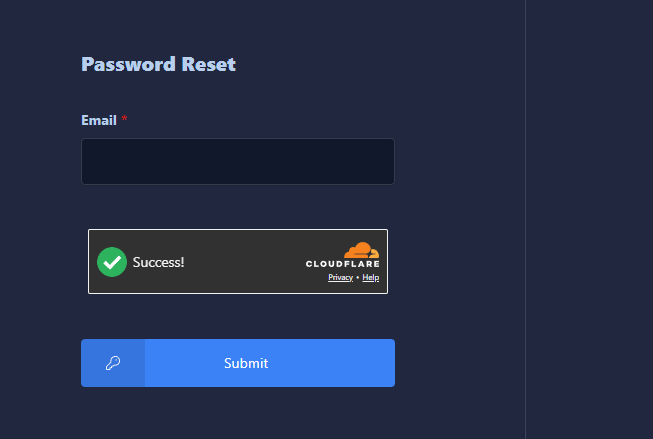
Enter your email address and select Submit.
Note
If you mistype your email address, the password reset request will fail, but there will be no indication.
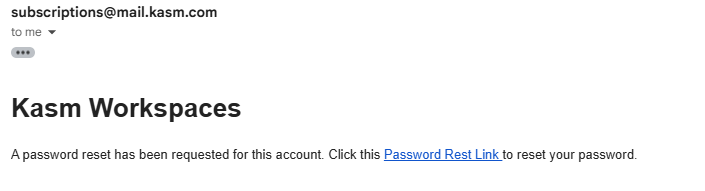
You should receive a password reset email. Select the Password Reset Link in the email.
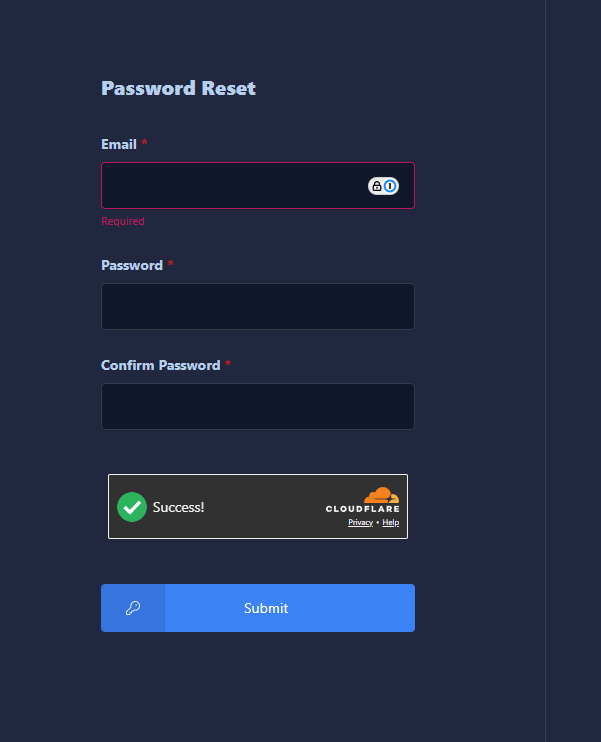
On the reset page, enter a new password that meets the required password complexity, then select Submit.
Note
Make sure your email address is filled in on the reset page. It should be automatically populated when you are redirected to the page.
You can now log in with your new credentials.
How To Update Your Payment Method
Log in to Kasm Cloud Personal.
On the Kasm Dashboard, select the round icon in the upper-right corner to access your user profile.
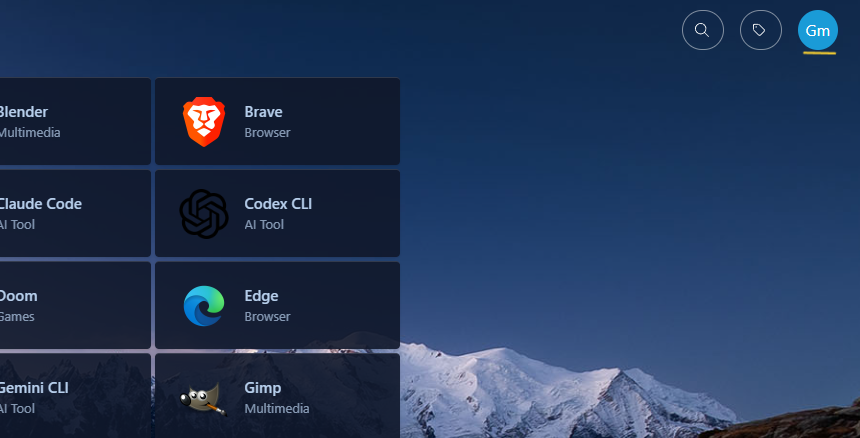
In the User Profile dialog, select the Subscription Details section.
Note
If you do not see this section, your subscription may not have finished provisioning yet. Please allow at least one hour for this section to populate.
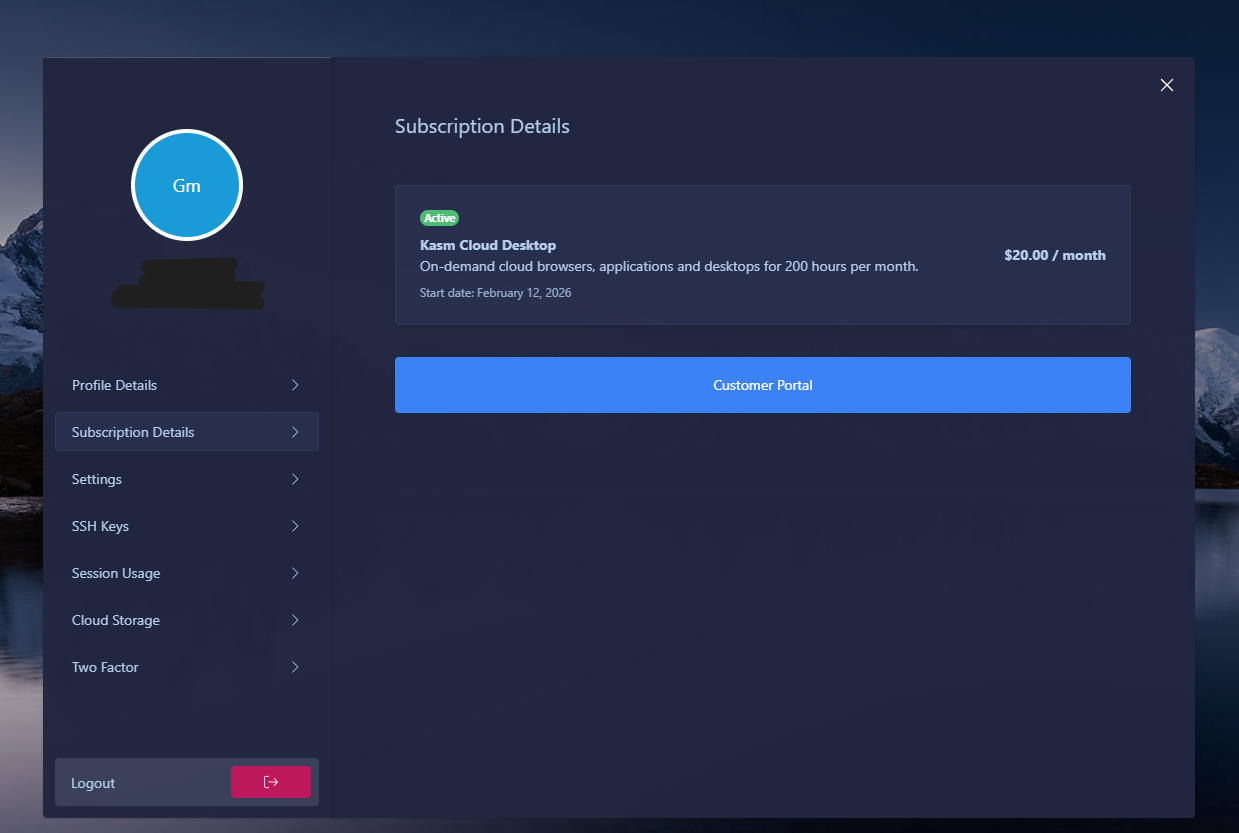
Select the Customer Portal button.
Select Update Subscription.
Select a different subscription plan than the one you currently have. This is required to get to the screen where you can edit your payment details. Select Continue.
On the next screen, you will see a small identifier for your current default payment method, just below the Amount Due section. Select the pencil icon on the right side of the identifier to edit this payment method.
On the Select a Payment Method screen, select Add payment Method.
After adding your new payment method, select Update. You can go back to the Billing screen by selecting Go Back and then using the breadcrumb in the upper-left corner.
Your new payment method should now be displayed as the default. If desired, you can remove your old payment method by selecting the ellipses menu, (…), next to the old payment method and selecting Delete.
In the next dialog, confirm deletion by selecting Delete payment method.
How To Cancel Your Membership
To cancel your Kasm Cloud Personal membership:
Log in to Kasm Cloud Personal.
On the Kasm Dashboard, select the round icon in the upper-right corner to access your user profile.
In the User Profile dialog, select the Subscription Details section.
Note
If you do not see this section, your subscription may not have finished provisioning yet. Please allow at least one hour for this section to populate.
Select the Customer Portal button.
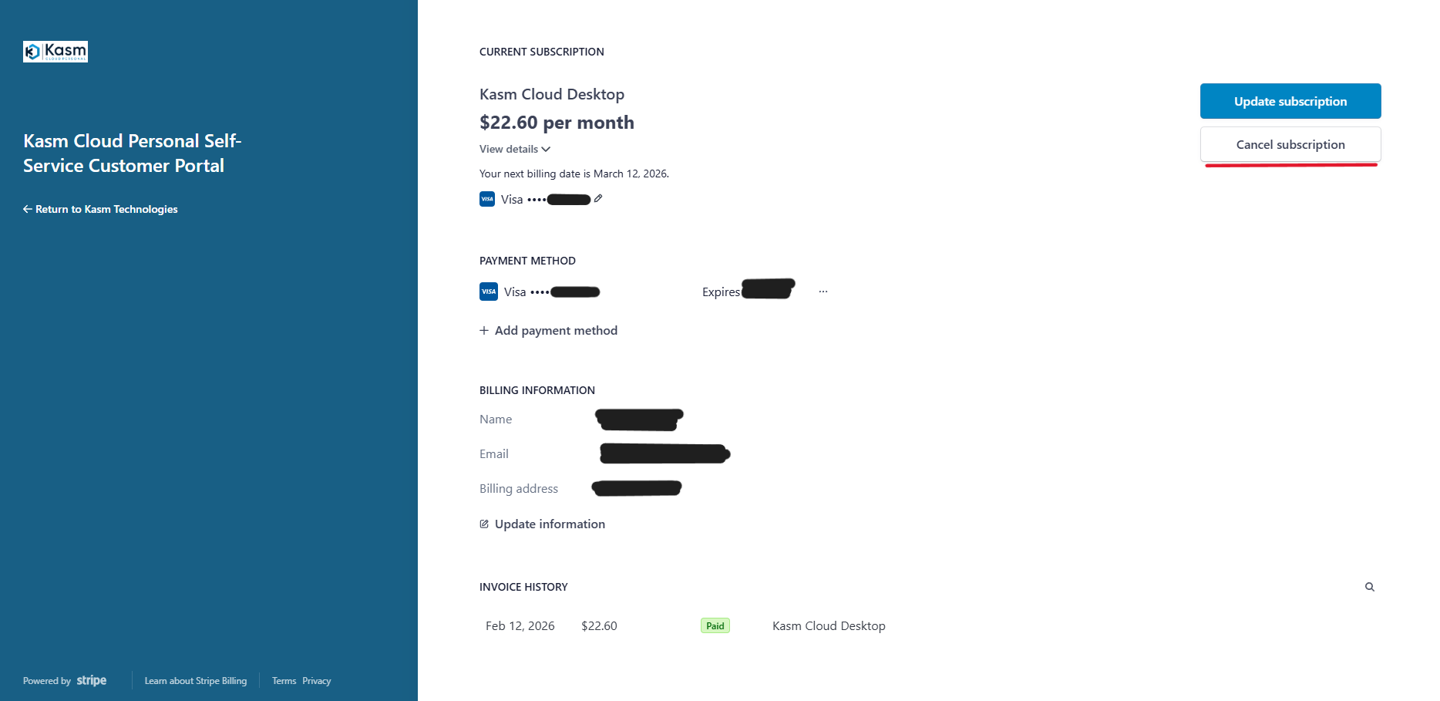
In the Customer Portal, select Cancel subscription in the upper-right corner.
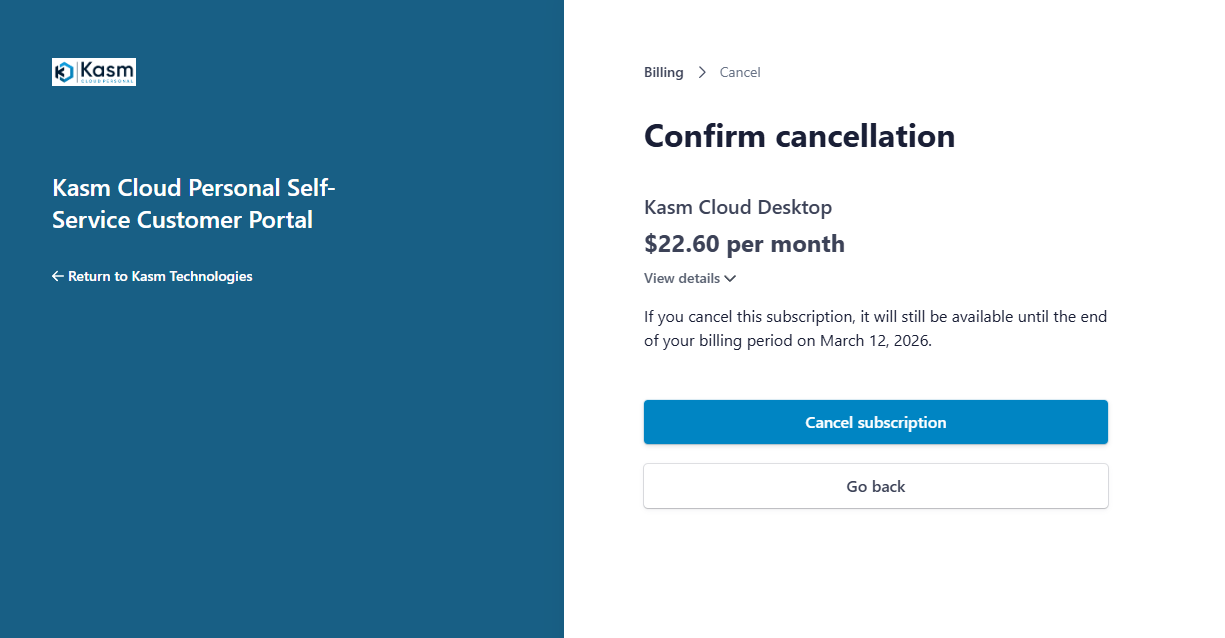
On the cancellation screen, select Cancel subscription.
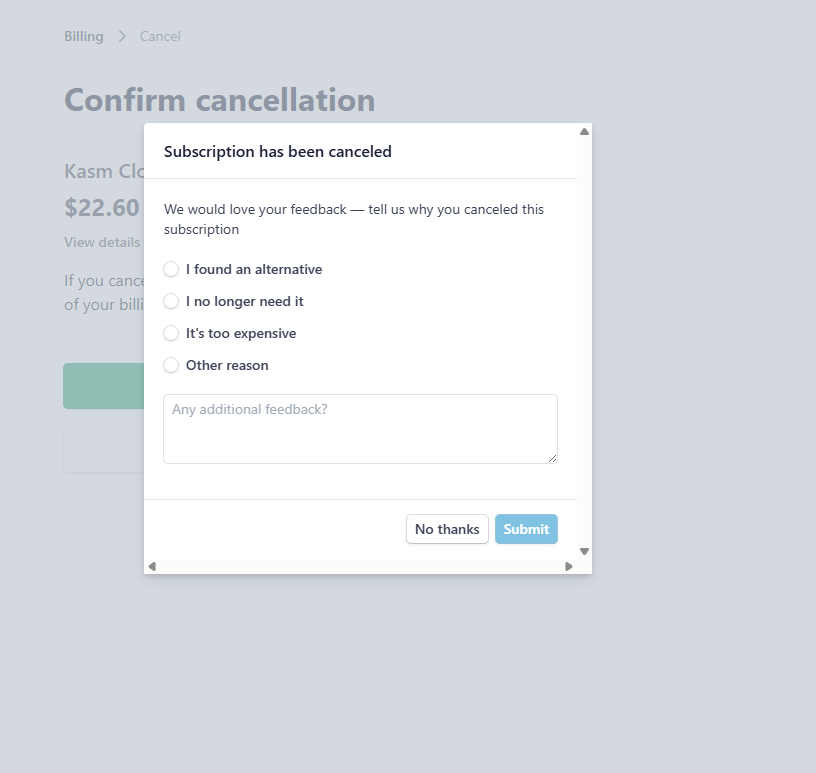
Your account is now canceled. You can optionally submit additional feedback, or select No thanks.
If you are experiencing issues cancelling your membership, please email cloudpersonal.billing@kasm.com.
Technical Issues or General Questions
Cloud Personal is a self-service plan. Get instant help 24/7 with our AI assistant, documentation, and community resources.
System Uptime and Status
To view Cloud Personal system uptime and service status, visit the Cloud Personal Status Page.
Report a Bug
Help us improve by reporting technical issues in the community support issue tracker.
While Cloud Personal does not include direct support, we review all bug reports to enhance the platform.